Use an iPad as a second monitor for Windows

To use an iPad as a screen, Windows needs an app. This guide uses EternalMonitor, which is free and open source, with a Windows app and its own iPad app. Setup takes about 10 minutes.

What you need

  • A 64-bit PC with Windows 10 version 1809 or later, or Windows 11.
  • NVIDIA, AMD or Intel graphics. Supported cards encode the video in hardware.
  • An iPad with iPadOS 17 or later.
  • For Wi-Fi, the PC and the iPad on the same home or office network. Guest networks usually keep devices apart.
  • For a USB cable, one that carries data, and Apple's free Apple Devices app on the PC. Apple Devices needs Windows 10 version 22H2 (build 19045) or Windows 11.

The compatibility page lists the PCs and iPads it has been tested on.

Set it up

1. Install EternalMonitor on the PC

On the download page, click Download for Windows and open EternalMonitor-Setup.exe. If Windows shows Windows protected your PC, click More info, then Run anyway. If Windows asks Would you like to install this device software?, click Install. That driver is what lets the iPad be a second screen.

2. Install the iPad app

Anyone can install the iPad app through Apple's TestFlight. Install TestFlight from the App Store, open the EternalMonitor invite on the iPad, then tap Accept and Install.

3. Connect

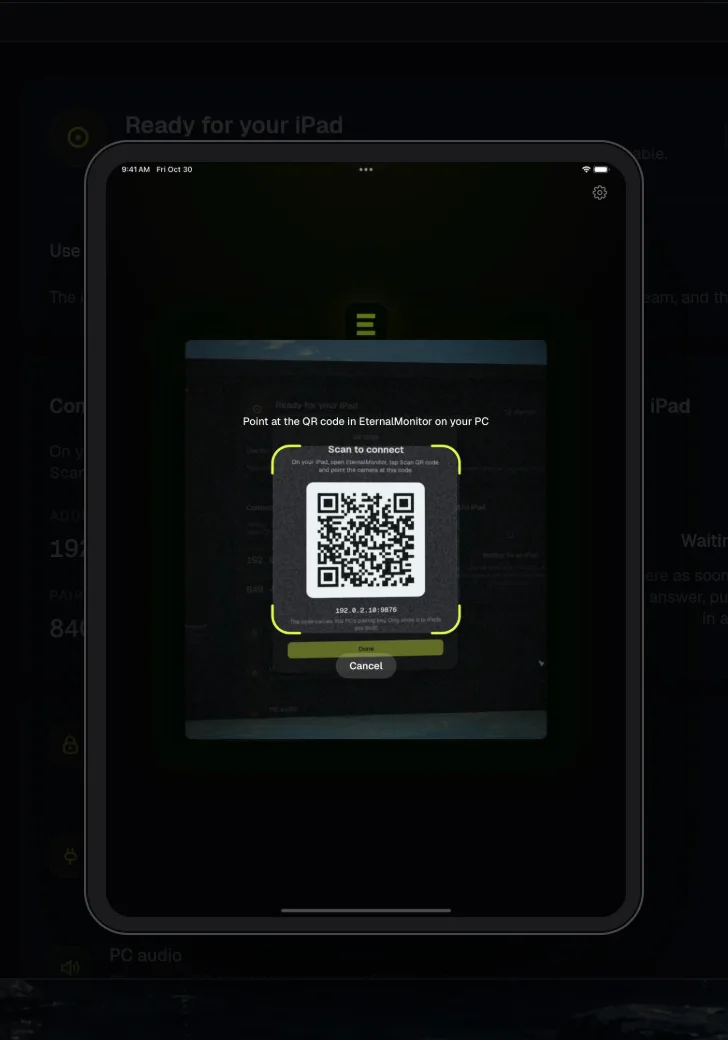
Keep EternalMonitor open on the PC; it says Ready for your iPad. Open the app on the iPad and tap Allow when it asks to find devices on your local network. Then tap your PC under Found on this network, scan the QR code from the PC window, or type the Address the PC shows.

4. Pair once

The first time on Wi-Fi, type the six-digit Pairing code from the PC window and tap Pair iPad. Scanning the QR code skips this. After that the iPad remembers your PC.

The setup guide has every step with the exact wording on screen.

Extend or mirror

At first the iPad mirrors your main screen. To make it a second screen, go to the Stream page in the PC window and, next to Use the iPad as, click Second screen. The iPad reconnects by itself. Drag a window past the edge of your main screen and it moves onto the iPad.

Arrange screens, next to that choice, opens Windows' Display settings, where you drag the iPad to the side of your monitor it sits on. The second screen exists only while the iPad is connected.

To mirror again, click Mirror my screen. With more than one monitor, pick the one to mirror in Settings, under How the iPad shows your PC. On the iPad, choose Picture: Fill in Settings to fill the screen and trim the edges, or Fit to see all of it with bars.

Wi-Fi or USB

Start with Wi-Fi. A cable gives a steadier picture and can charge the iPad from a USB-C port.

For USB, open Apple Devices on the PC and leave it open; it can stay minimized. Plug in the iPad, unlock it, and tap Trust the first time. Open EternalMonitor on the iPad and it connects over the cable. USB needs no pairing code. Plug the cable in during a Wi-Fi session and it takes over.

On the test PC, a 30-minute second screen over USB dropped no frames, and a 30-minute mirror over Wi-Fi dropped 19 of 105,600. A USB-C to USB-C cable charged the iPad while it streamed. The compatibility page has the conditions.

Draw with Apple Pencil

Apple Pencil works as a Windows pen, with pressure and tilt.

  • In the iPad app's settings, turn on Drawing mode, then reconnect. It ignores your palm and fingers on the canvas and mutes PC audio. A USB cable gives the smoothest strokes.
  • In your drawing app, pick the Windows pen setting. In Clip Studio Paint, choose Preferences, then Tablet, then Tablet PC.
  • Open the drawing app normally, not with Run as administrator, or Windows blocks the pen.
  • Pressure works with Apple Pencil (1st or 2nd generation) and Apple Pencil Pro.

The drawing guide has the details.

Apple Pencil, with pressure and tilt

Explore

Tips

  • To find the PC, keep EternalMonitor open on it and put both on the same Wi-Fi, not a guest network. You can also scan its QR code or type its Address. If the PC runs a VPN, tap it under Found on this network, which finds the right address by itself.
  • For USB, keep Apple Devices open, tap Trust on the iPad the first time, and use a cable that carries data. Apple Devices needs Windows 10 version 22H2 or Windows 11.
  • For the smoothest Wi-Fi, use a 5 GHz network and stay close to the router, or connect the PC to the router with a network cable.
  • For pressure in Clip Studio Paint, choose the Tablet PC setting.

The setup guide's message tables list every message the apps show, with what to do.

Questions

Is EternalMonitor free?

Yes. It is free and open source under the MIT license, with no account.

Can Windows use an iPad as a monitor on its own?

No, Windows needs an app for it. EternalMonitor has a Windows app and its own iPad app, which decodes the video in hardware and sends Apple Pencil pressure and tilt back to Windows as Windows Ink.

Wi-Fi or USB?

Both. Start on Wi-Fi. A cable gives a steadier picture, takes over a running Wi-Fi session when you plug it in, and can charge the iPad from a USB-C port.

Does Apple Pencil pressure work?

Yes. Windows receives pressure and tilt as Windows Ink, and Drawing mode ignores your palm on the canvas. Pressure works with Apple Pencil (1st or 2nd generation) and Apple Pencil Pro.

How smooth is the picture?

The PC streams at 30, 60, 90 or 120 fps, encoded on supported NVIDIA, AMD or Intel graphics. 120 is for iPads with ProMotion; the lower of the PC's and the iPad's rate wins.

Which iPads work?

Any iPad with iPadOS 17 or later.

Is there a Mac version?

Mac support is coming soon, for iPad and iPhone Duo.